

Documentation Index
Fetch the complete documentation index at: https://guide.cloud.blnkfinance.com/llms.txt
Use this file to discover all available pages before exploring further.
Overview
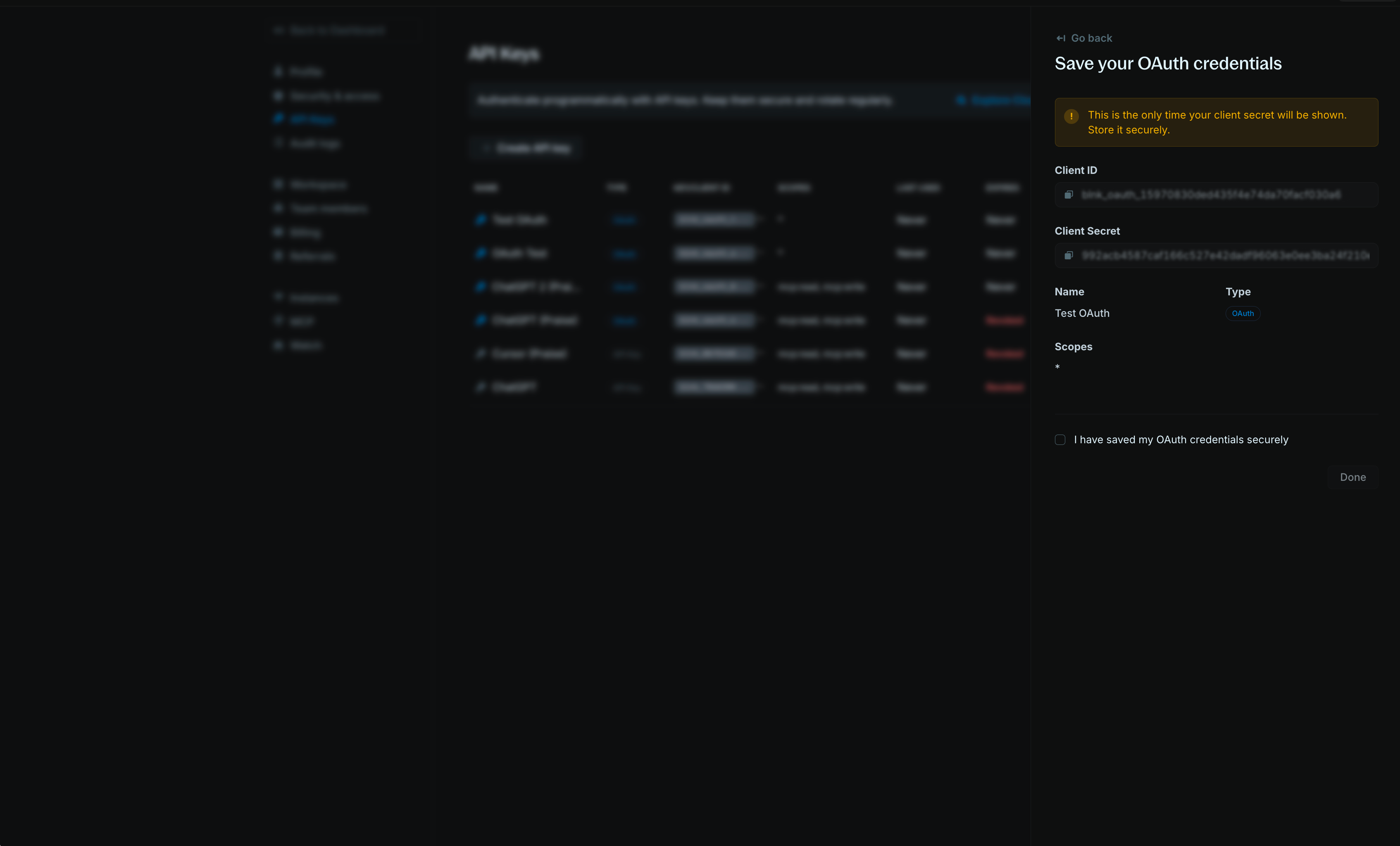
OAuth clients provide secure authentication for MCP and third-party integrations to access Blnk. To manage your OAuth clients, go to Settings > API Keys. Each OAuth client has:- Name: A user-friendly identifier to help you organize and identify clients
- Client ID: A public identifier for your OAuth client
- Client Secret: A secret credential used for authentication (shown only once at creation)
- Scopes: Permissions that define what the client can access (e.g.,
*for all permissions, or specific scopes likemcp:read,proxy:write, ordata:read) - Expiration: Optional expiration date, or “Never” for clients that don’t expire
Create an OAuth client
Navigate to API Keys
- Go to Settings > API Keys in your Blnk Cloud dashboard.
- Click Create API Key button in the top-right corner of the API Keys page.
Configure your OAuth client
Fill in the required information:
- Name: Enter a descriptive name for your OAuth client (e.g., “Production OAuth Client”, “MCP Integration”)
- Type: Select OAuth (instead of API Key)
- Scopes: Select the permissions for this client:
*for all permissions- Specific scopes like
mcp:read,proxy:write, ordata:readfor limited access
- Expires: Choose when the client should expire:
- Select a specific date
- Choose “Never” for clients that don’t expire
Get an access token
For third-party integrations, you’ll need to an access token to interact with the user’s Cloud workspace via the Cloud Proxy and Data APIs.Get callback code
Redirect the user’s browser to the Blnk authorization URL to log in:Replace: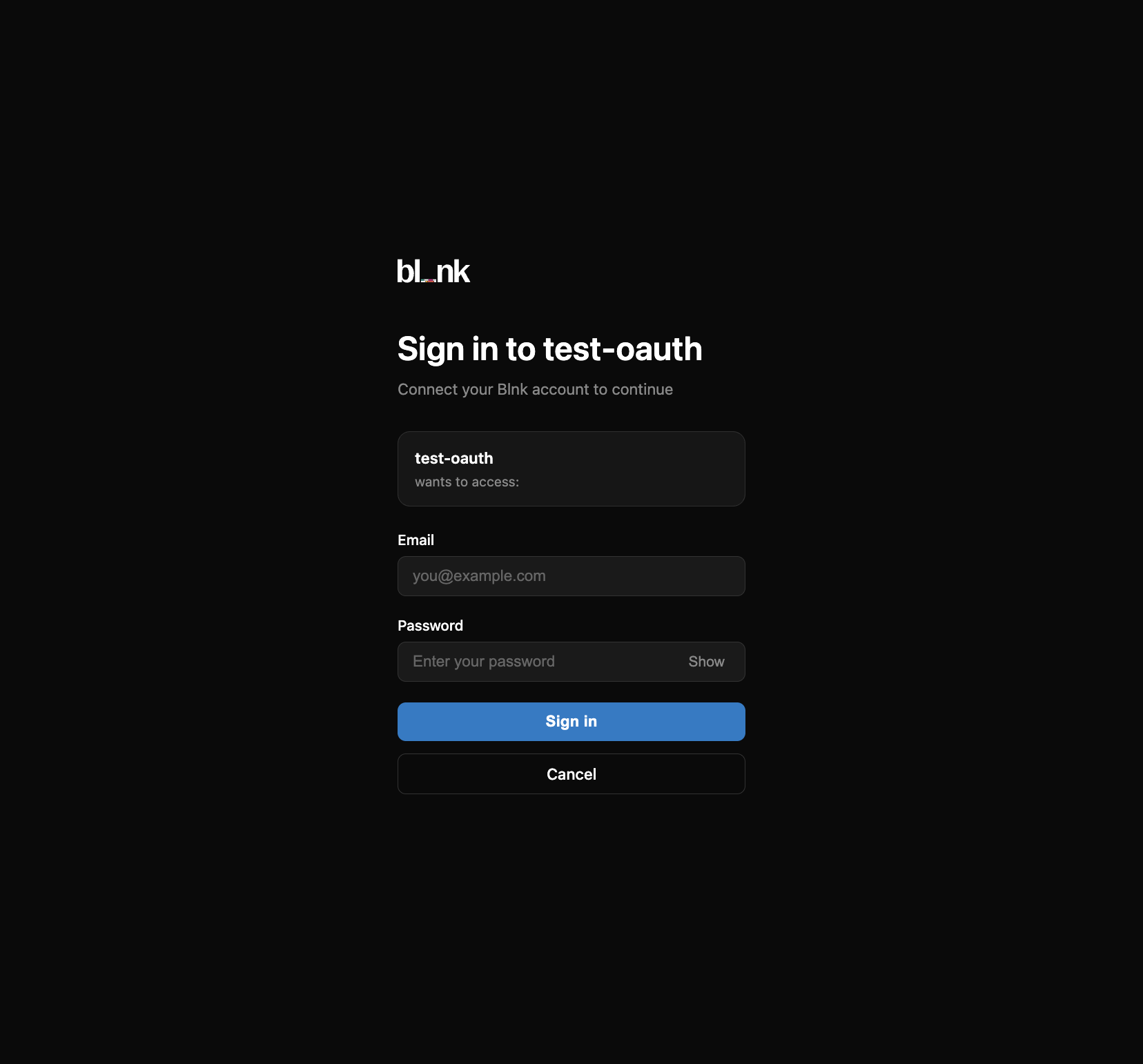
Authorization URL
YOUR_CLIENT_ID: Your OAuth client ID.redirect_uri: Your app’s callback URL (for example,https://your-app.com/oauth/callback). This must match exactly when you exchange the code.
Redirect back
Exchange the code for an access token
Call the token endpoint with the authorization code and your OAuth client credentials:
cURL
200 OK
Use the access token with Cloud APIs
Include your access token in theAuthorization header for Cloud API requests:
Example request
Find and use the instance ID
To route requests to the correct Blnk Core instance, includeinstance_id as a query parameter on every Proxy/Data API request.
How users find their instance ID
- Log in to Blnk Cloud.
- Open the Instances page (your list of instances can be seen on the home page or Settings → Instances).
- Find the Blnk Core instance you want to use.
- Click on the instance to open the details modal.
- Copy its Instance ID (for example,
instance_01ABC...).
Revoke an OAuth client
If you need to disable an OAuth client without deleting it permanently, you can revoke it. Revoked clients cannot be used for authentication but remain visible in your API Keys list for reference.Next steps
Proxy API documentation
Learn how to create records in your ledger via Cloud APIs.
Data API documentation
Learn how to query and filter your financial data.