

Documentation Index
Fetch the complete documentation index at: https://guide.cloud.blnkfinance.com/llms.txt
Use this file to discover all available pages before exploring further.
This feature is in private beta. If you want access, please contact Support.
- Blnk sends a
POSTrequest to your portal generator URL. - Your app checks that the install exists and is active.
- Your app creates a short-lived portal session.
- Your app returns a
portal_url. - Blnk opens that URL inside the dashboard.

Handling the portal request
Cloud sends a payload like this to yourportal_generator_url:
generate_portal.json
| Field | Description |
|---|---|
installed_app_id | The ID for this specific app installation. Use it to find the install record. |
app_id | The ID of the app being launched. |
organization_id | The organization where the app is installed. |
instance_id | The Cloud instance the app should work with. |
user_id | The user launching the app from Cloud. |
- the install exists and is active
- the
organization_idandinstance_idmatch the install record
validateInstallForPortal.ts
Create a portal session
Next, your app should create a portal session once the portal request is validated. The session helps your app know:- which installation opened the portal
- which organization and instance the portal is launched from
- which user launched the app
- when the session should expire
createPortalSession.ts
We recommend keeping portal sessions short-lived. A 5 to 15 minute expiry is usually enough for launch sessions.
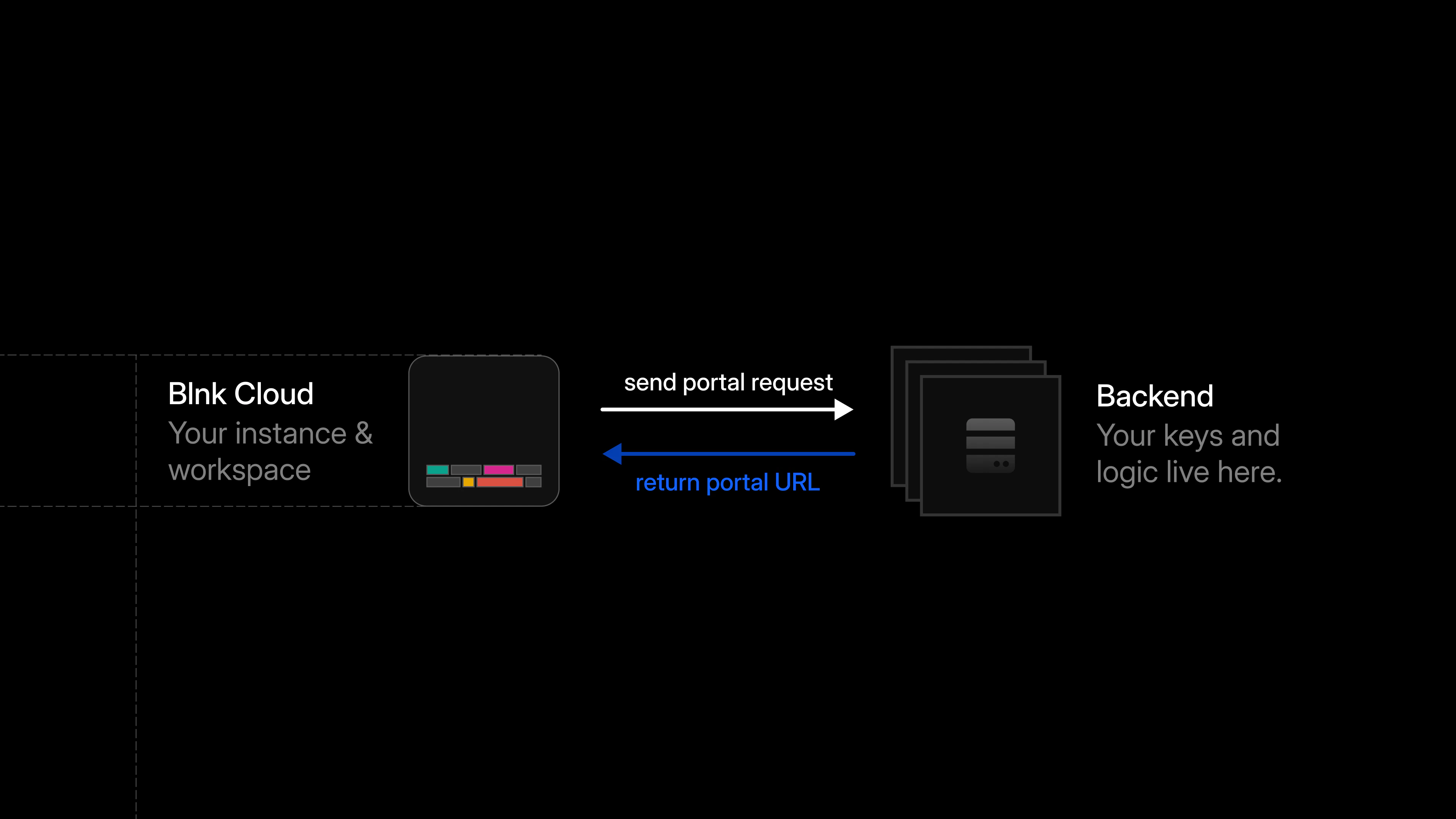
portal_url to Cloud. The response should look like this:
Expected response
The portal URL should only point to your app interface. It should not include API keys, provider secrets, or any sensitive data.
Load the app inside Cloud
When Cloud opens theportal_url, it loads your app inside the dashboard.
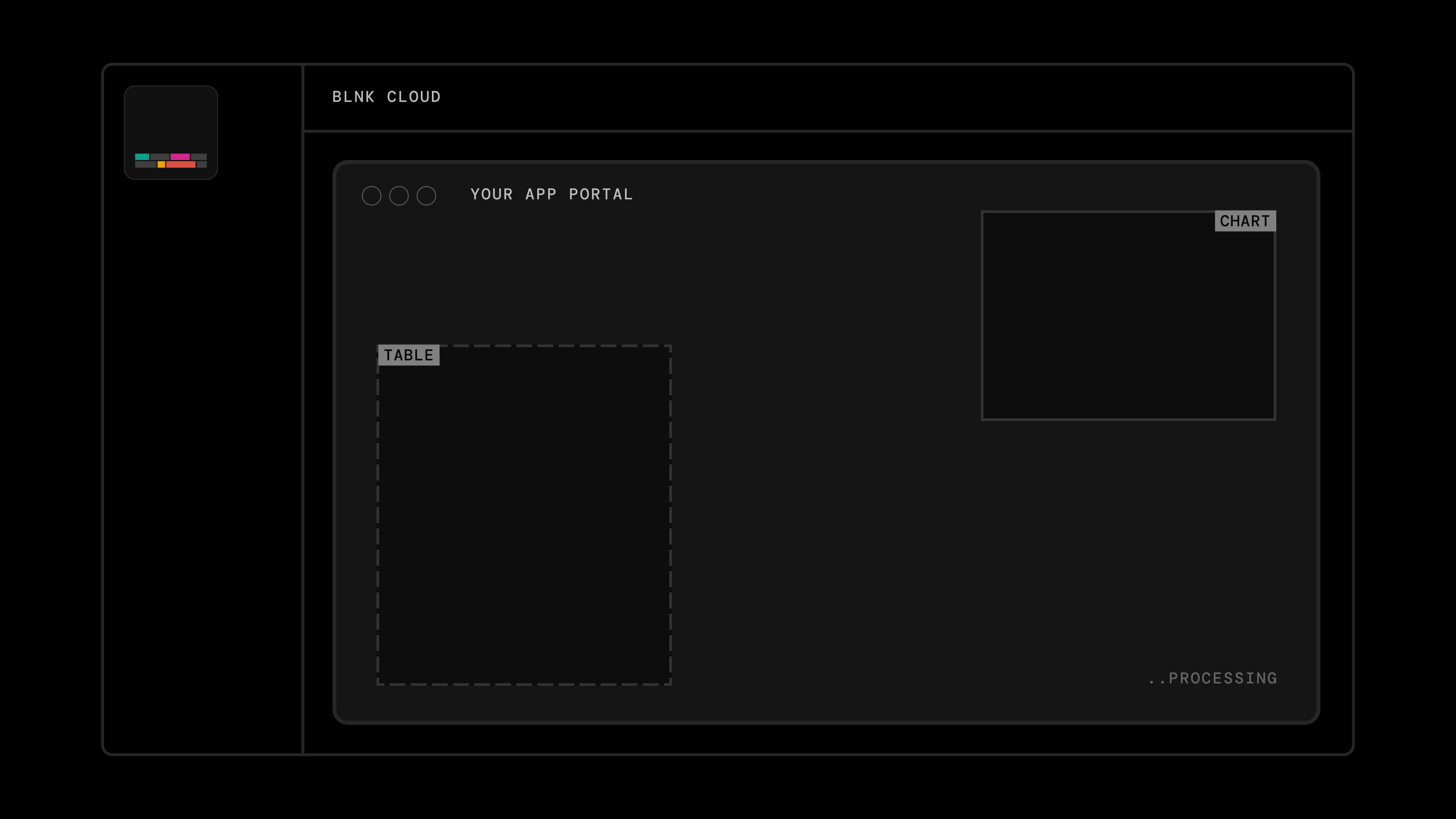
- Blnk sends a fresh portal request for every launch. Your app should return a fresh
portal_urlfor each request. - Keep Cloud API keys on the backend. Do not expose them in the browser.
Test the launch flow
To test app launch:- Install the app in Cloud.
- Click Launch app from the app details page.
- Confirm your
portal_generator_urlreceives the launch request. - Confirm your app creates a portal session.
- Confirm your app returns a valid
portal_url. - Confirm the app opens inside the Cloud dashboard.
- Confirm expired sessions can no longer open the portal.
Run the example KYC app
Open the demo repository and follow its README to run the KYC example app this documentation is built around.