

Documentation Index
Fetch the complete documentation index at: https://guide.cloud.blnkfinance.com/llms.txt
Use this file to discover all available pages before exploring further.
Overview
Alert statuses let you define custom names and colours for the statuses you use on alerts. You can create statuses like “Pending”, “In Review”, or “Fraud review” and assign each a colour so they’re easy to spot in your Alerts table and details. You can find it in Settings > Alert statuses.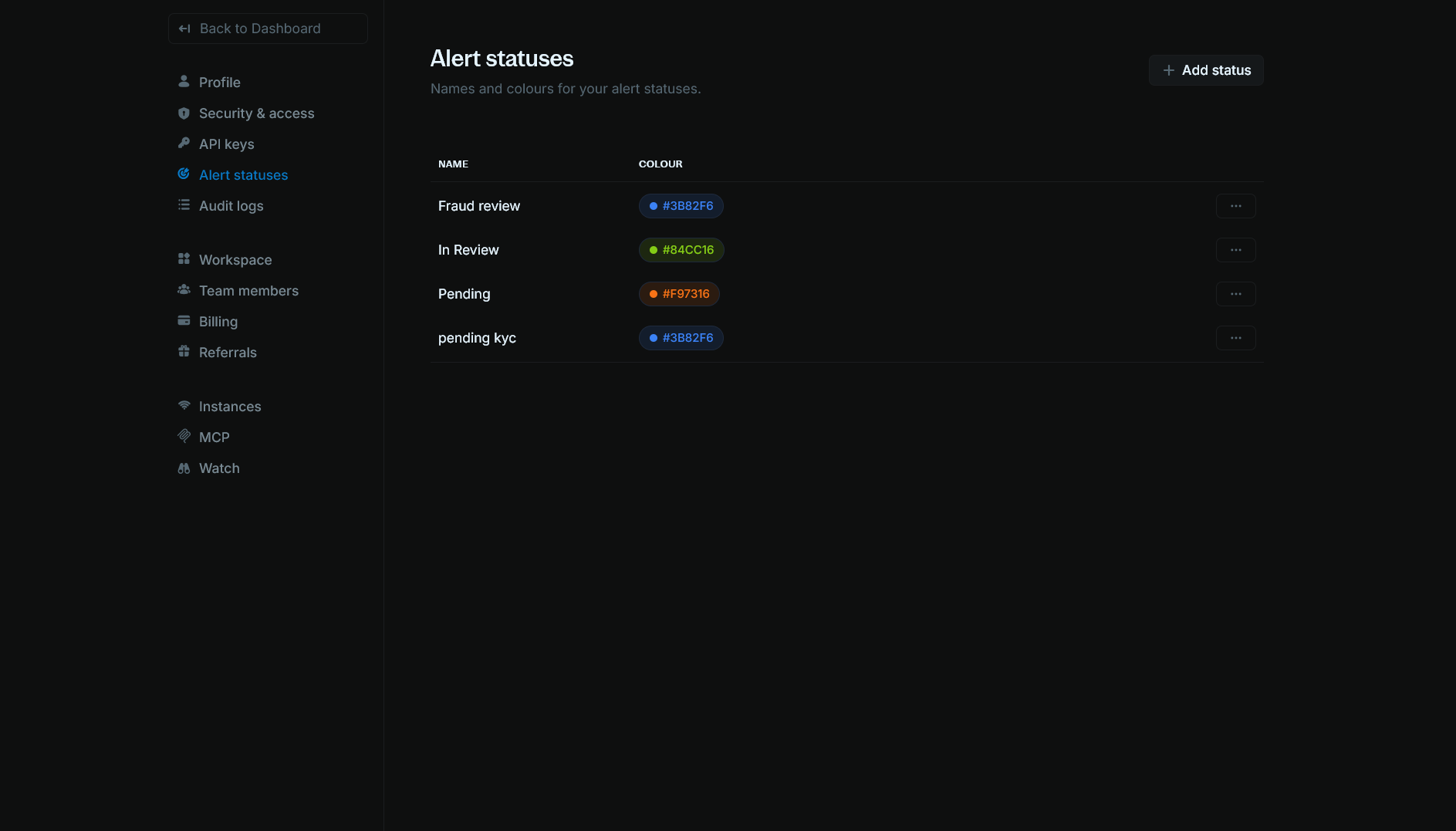
View alert statuses
The Alert statuses page lists all custom statuses for your organization. For each status you can see:- Name: The display name (e.g. “Fraud review”, “In Review”, “Pending”).
- Colour: A colour swatch and hex code (e.g. #3B82F6, #84CC16). Colours must be one of the allowed values.
Add a status
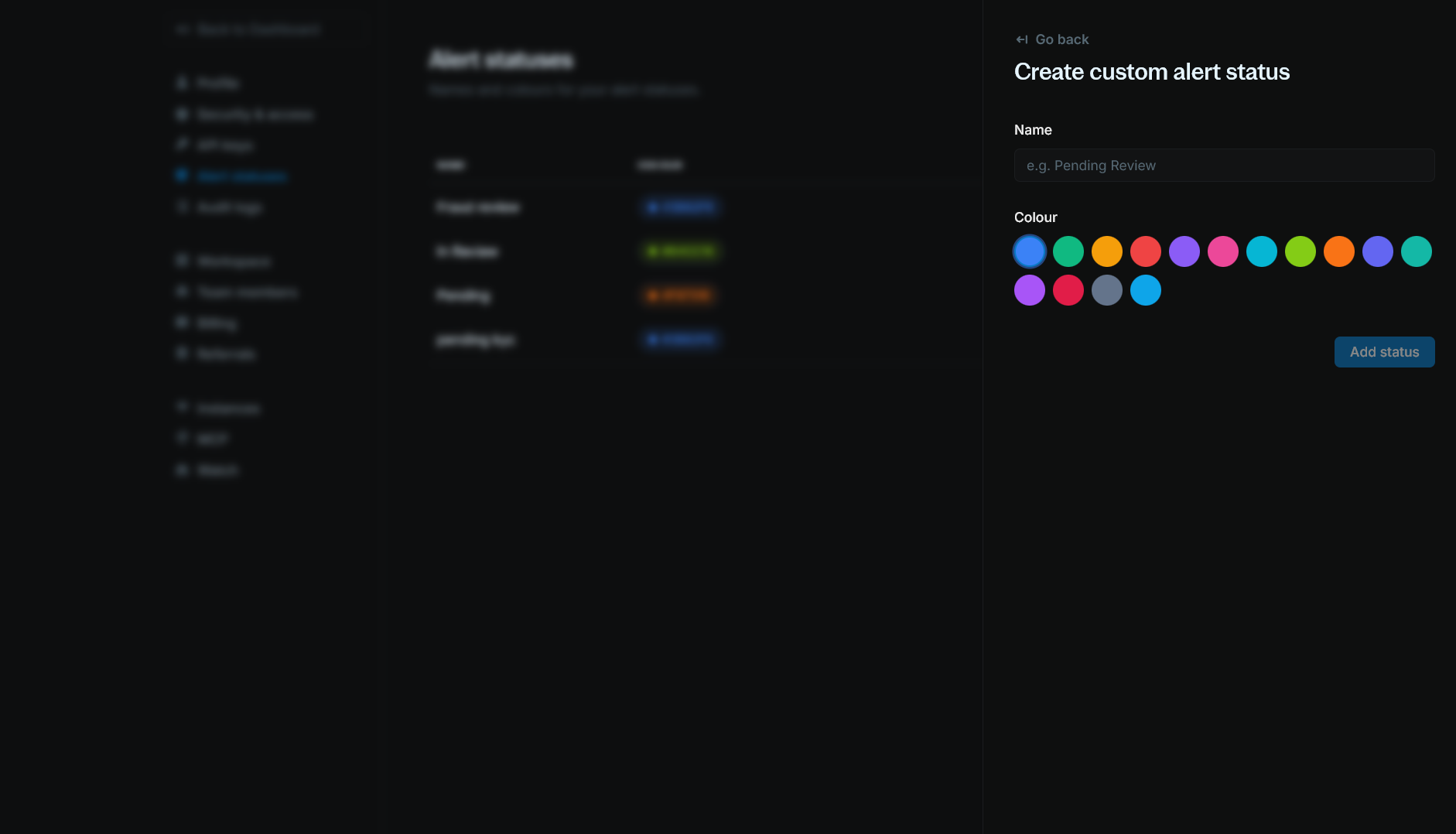
- Click + Add status in the top-right corner.
- Enter a Name for the status (e.g. “Pending Review”, “In Progress”).
- Choose a Colour from the allowed options.
- Click Add status.
Edit a status
- On the Alert statuses page, open the Actions menu (three dots) for the status you want to change.
- Select Edit.
- Update the Name and/or Colour.
- Click Save.
Delete a status
- On the Alert statuses page, open the Actions menu (three dots) for the status.
- Select Delete.
- Confirm the deletion.