

Migration helps teams looking to migrate from their self-hosted instance to Blnk Cloud (or vice versa). This gives teams access to automated backups, IP whitelisting, improved Core performance, etc that only Cloud offers. With Blnk Cloud, you can do two kinds of migration:Documentation Index
Fetch the complete documentation index at: https://guide.cloud.blnkfinance.com/llms.txt
Use this file to discover all available pages before exploring further.
- Import into deployment: bring data from an external PostgreSQL database into Blnk Cloud
- Export from deployment: send data from Blnk Cloud to an external PostgreSQL database
Prerequisites
You need to ensure the following are online before to run a successful migration to Blnk Cloud:- An active running deployment on Blnk Cloud. If you don’t have one yet, See Managed instances.
-
Full connection URL of your external/self-hosted Postgres DB e.g.
How to run a migration
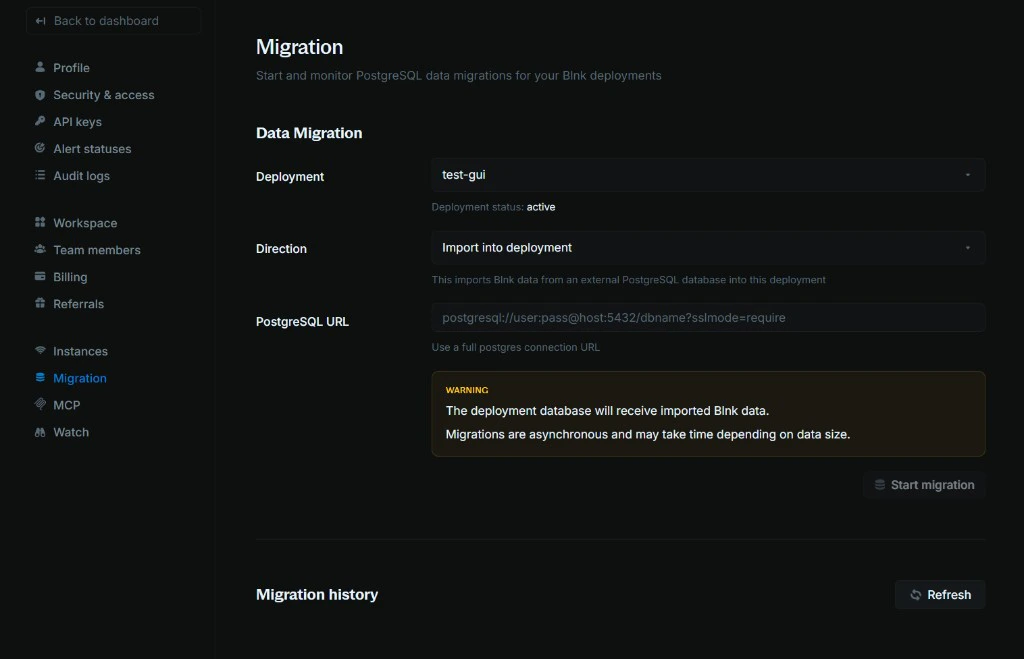
- Go to Settings → Migration
- Select your deployment
-
Choose a direction:
- Import into deployment
- Export from deployment
- Paste your PostgreSQL URL
- Click Start migration and confirm
- Avoid making changes to your data during migration (to prevent conflicts)
After the migration
On your Cloud workspace:- Confirm that ledgers, balances, transactions, and identities look correct in the dashboard or your usual tools.
- Compare record counts or spot-check key data against the source database.
- Test your workflows on the new deployment to confirm that everything works great, before switching to production.