

Documentation Index
Fetch the complete documentation index at: https://guide.cloud.blnkfinance.com/llms.txt
Use this file to discover all available pages before exploring further.
Overview
External data is the data you want to compare against your ledger.It can come from anywhere: bank statements, card statements, payment processor statements, internal financial reports, etc. For reconciliation in Blnk, this data must follow our required format to keep things consistent and accurate.Preparing your external data
After exporting your data from your external source, convert it into the specified structure below, ensuring each records includes the following attributes:| Attribute | Type | Description |
|---|---|---|
id | String | Unique external transaction ID. |
amount | Number | The transaction amount, e.g. 200.00 |
source | String | Origin of the transaction data. |
reference | String | Transaction reference number. |
currency | String | ISO 4217 currency code, e.g. USD |
description | String | Transaction description. |
date | String | ISO 8601 timestamp of your transaction in UTC timezone, e.g. 2025-11-27T12:00:00Z |
Recommended best practices
Consider how transactions are recorded in Blnk and use it to determine how you should prepare your data. To avoid any issues with your upload, note the following important details:- Make sure the external IDs are unique and have not be used before for a previous reconciliation run.
- Ensure you use the same currency code used in your ledger per transaction.
- Convert your date and time to the UTC timezone (specified with the Z suffix).
- If your ledger uses queue, consider adding the
_qsuffix to the references in your external data for precise matching.Blnk adds_qsuffix to the references of transactions in your ledger when they move from theQUEUEDstatus to the next status.
Upload your data
To upload your data: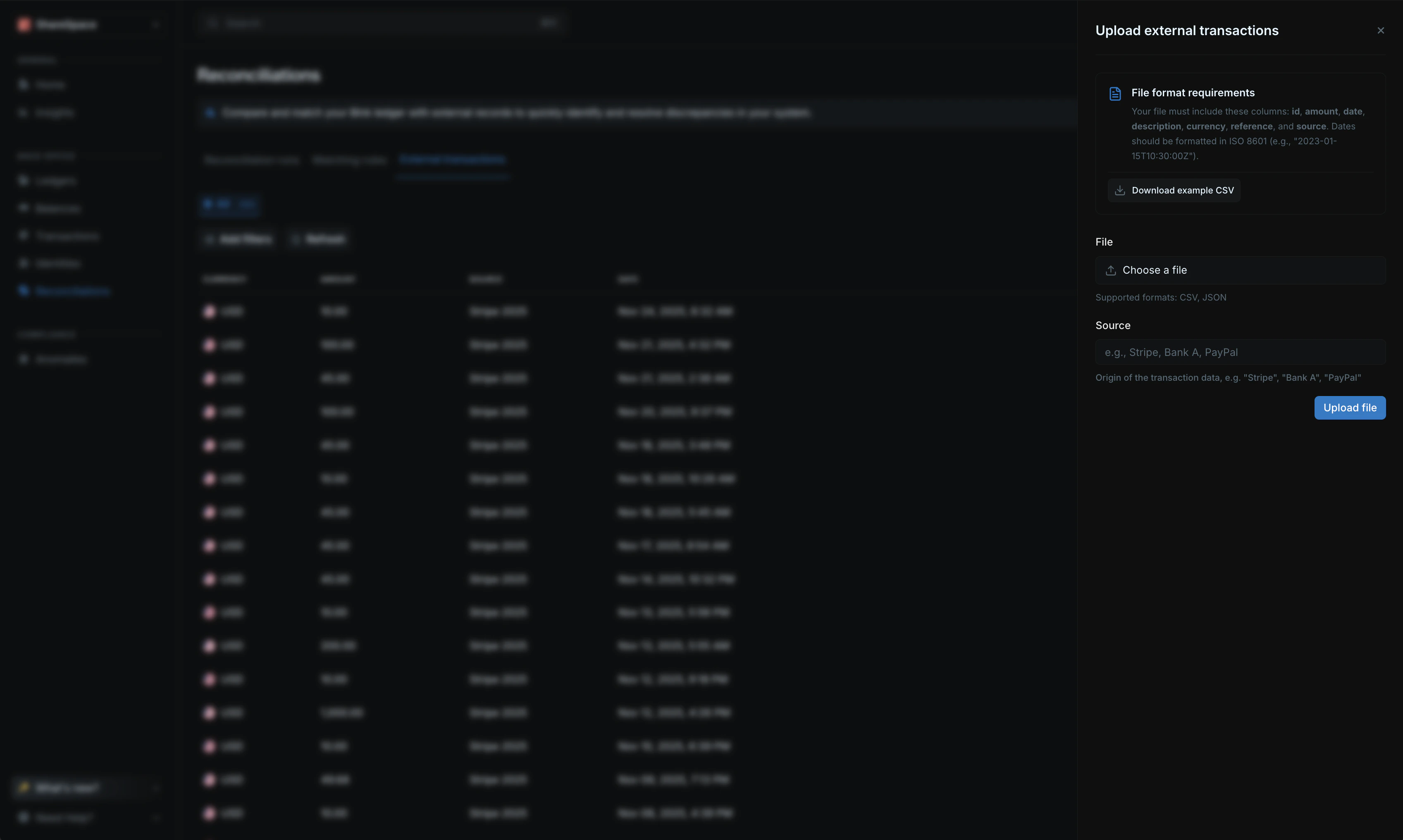
- Go to the Reconciliations page from your sidenav.
- Click on External transactions from the top menu.
- Click on Upload external data from the top right corner.